TL;DR Take me to the actual solution
If you've ever forwarded an email to ClickUp and wondered where your attachments went, you're not alone.
The ClickUp Chrome extension promises to turn emails into tasks with a single click. In practice? Attachments vanish. Email dates disappear. Headers get stripped. And sometimes the extension just stops working entirely.
I've spent hours in ClickUp's feedback forums reading complaints dating back to 2020. The same problems keep appearing. Here's what's actually going on, what fixes work, and what to do when they don't.
The Problem: What ClickUp's Email Extension Actually Captures
When you use the Chrome extension to attach an email to a task, ClickUp doesn't capture the full email. Here's what gets lost:
| What You Send | What ClickUp Keeps |
|---|---|
| Full email with headers | Subject line + body text |
| Attachments (PDFs, docs, images) | Often missing or corrupted |
| Sender name and email | Sometimes stripped |
| Date and time sent | Shows when attached, not when sent |
| CC and BCC recipients | Gone |
| Email thread context | Flattened or lost |
This isn't a bug. It's how the extension is built. ClickUp's Chrome extension converts emails to a simplified format, and that conversion loses data.
The ClickUp feedback thread "Attach email to Task - Include email headers and dates!" has been open since May 2020. Four years later, users are still commenting "More than 4 years later and we are still waiting for this."
5 Fixes You Can Try (And Why They Don't Solve the Real Problem)
I'm going to walk you through every fix I've found. Some of them work sometimes. None of them solve the underlying issue — which is that ClickUp's email parsing strips data by design.
Try them anyway. If you're lucky, one will work for your situation. If not, I'll show you what actually works at the end.
Fix #1: Clear Cache and Reinstall the Extension
The simplest fix. Sometimes the extension just needs a fresh start.
Steps:
- Click the puzzle piece icon in Chrome → Manage Extensions
- Find "ClickUp: Tasks, Screenshots, Email, Time"
- Click Remove
- Clear your browser cache: Chrome Settings → Privacy → Clear browsing data
- Reinstall from the Chrome Web Store
- Log back into ClickUp
Success rate: About 20%. This fixes extension crashes and loading issues, but won't fix the data loss problem — that's architectural.
Fix #2: Reset Gmail Permissions
If the extension stopped connecting to Gmail, your OAuth token might have expired.
Steps:
- Go to your Google Account Security Settings
- Find ClickUp in "Third-party apps with account access"
- Click ClickUp → Remove Access
- Open Gmail, click the ClickUp logo in any email
- Re-authorize when prompted
Success rate: About 30%. Fixes connection issues, but again — won't restore missing attachments or headers.
Fix #3: Check Your Email Format Settings
ClickUp's extension handles plain text emails better than HTML emails. Some formatting causes parsing failures.
Steps:
- In Gmail: Settings → See all settings → General
- Scroll to "Default text style"
- Consider sending/forwarding emails as plain text
- Test with a simple email first (no signatures, no formatting)
Success rate: About 40%. Reduces parsing errors, but you're working around the problem, not solving it.
Fix #4: Manual Attachment Workaround
If attachments keep disappearing, stop relying on the extension to capture them.
Steps:
- Download attachments from the email manually
- Create or open the task in ClickUp
- Drag and drop attachments directly into the task
- Copy the email body text into the task description
Success rate: About 60%. It works, but you're back to copy-paste — which defeats the purpose of the extension.
Fix #5: Forward to ClickUp's Email Address Instead
ClickUp has a separate "Email to List" feature that bypasses the Chrome extension entirely.
Steps:
- Hover over a List in ClickUp → click the three dots → Email to List
- Copy the unique email address (looks like list.abc123@tasks.clickup.com)
- Forward emails directly to that address
- Task gets created in that List
Success rate: About 50%. But here's the catch — the same data loss problems exist. Attachments still get stripped. Headers still disappear. You're just using a different broken pipe.
The Real Issue: ClickUp's Email Architecture
Every fix above addresses symptoms, not the cause.
The cause: ClickUp's email parsing strips data by design. The extension and email-to-list features convert emails into a simplified format before creating tasks. Attachments, headers, and metadata don't survive that conversion.
ClickUp is aware. They've been "considering" improvements since 2020. In late 2025, they announced a new "AI-first" Chrome extension rebuild. User response in the feedback forum:
"The email link in the task opens Gmail but does not open the email that was referenced. Attachments from emails do not come with the tasks either like before."
"I don't want AI involved for a simple connector... I find it incredibly disappointing."
"Anyone who wants to add tasks from email will have to use something other than ClickUp, or go through Zapier."
The new extension is worse for email, not better.
What Actually Works: Full Email Capture
I built Casso because I hit these same problems running an agency.
Casso takes a different approach. Instead of parsing emails inside a browser extension, you forward emails to Casso's address and it captures everything:
| What You Send | What Casso Keeps |
|---|---|
| Full email | Full email |
| Attachments | Saved and attached to task |
| Sender, recipients, CC | Preserved |
| Date and time | Original timestamp |
| Email thread | Thread replies become task comments |
| Follow-up emails | Add ticket:xxxx to subject → updates same task |
Then Casso creates the task in ClickUp (or Jira, Asana, Monday.com) via API with all that data intact.
The workflow:
- Forward any email to your Casso address
- Casso's AI reads the email, extracts priority/deadlines, summarizes the request
- Task appears in ClickUp with attachments, metadata, everything
- Reply to the email? Add ticket:xxxxx to the subject — update goes to the same task
No Chrome extension. No browser permissions. No data loss. Works from any email client.
How to Set It Up
Setup takes about 2 minutes. Here's the full walkthrough:
Step 1: Sign up at casso.app and select ClickUp as your PM tool.
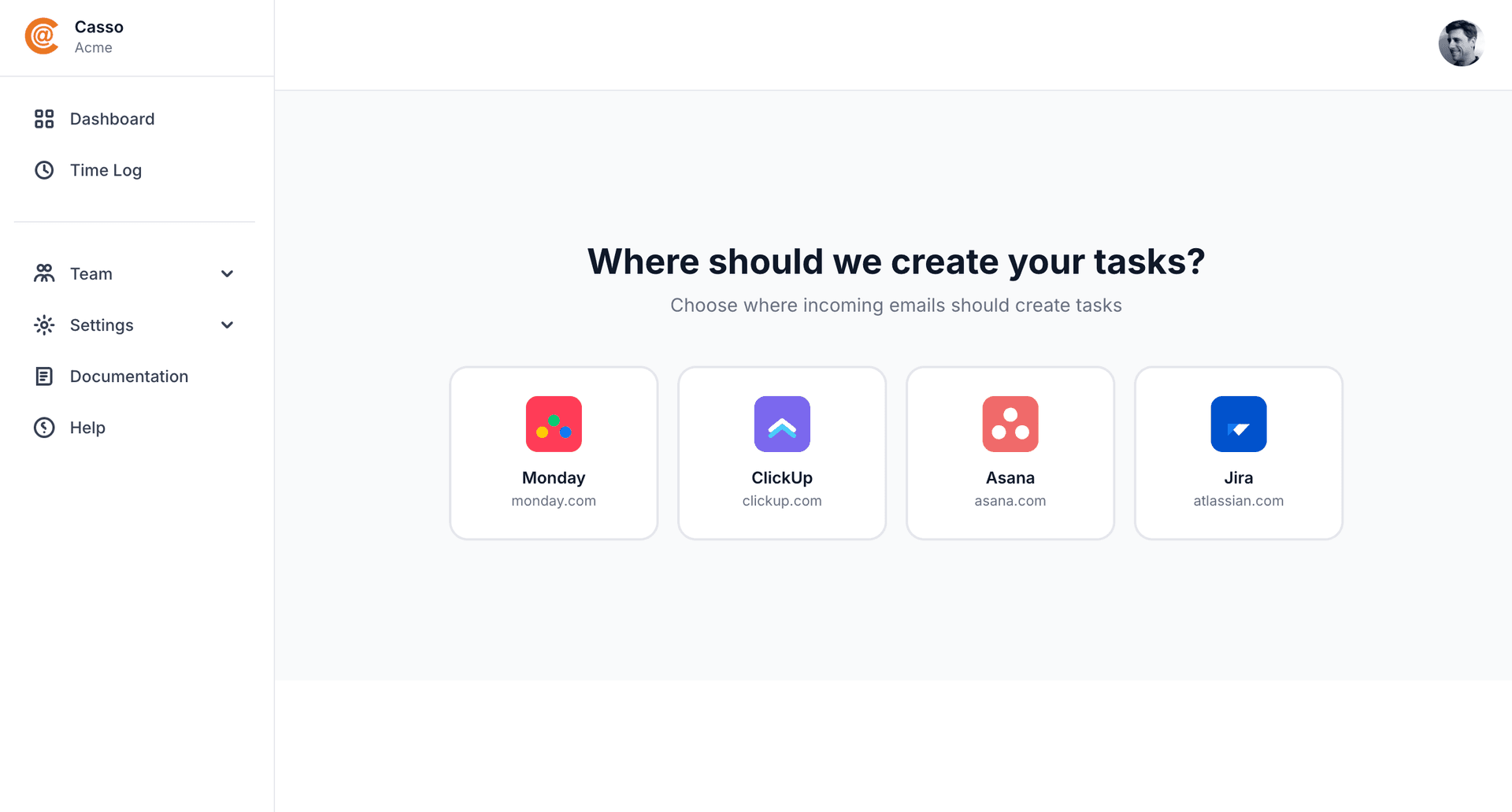
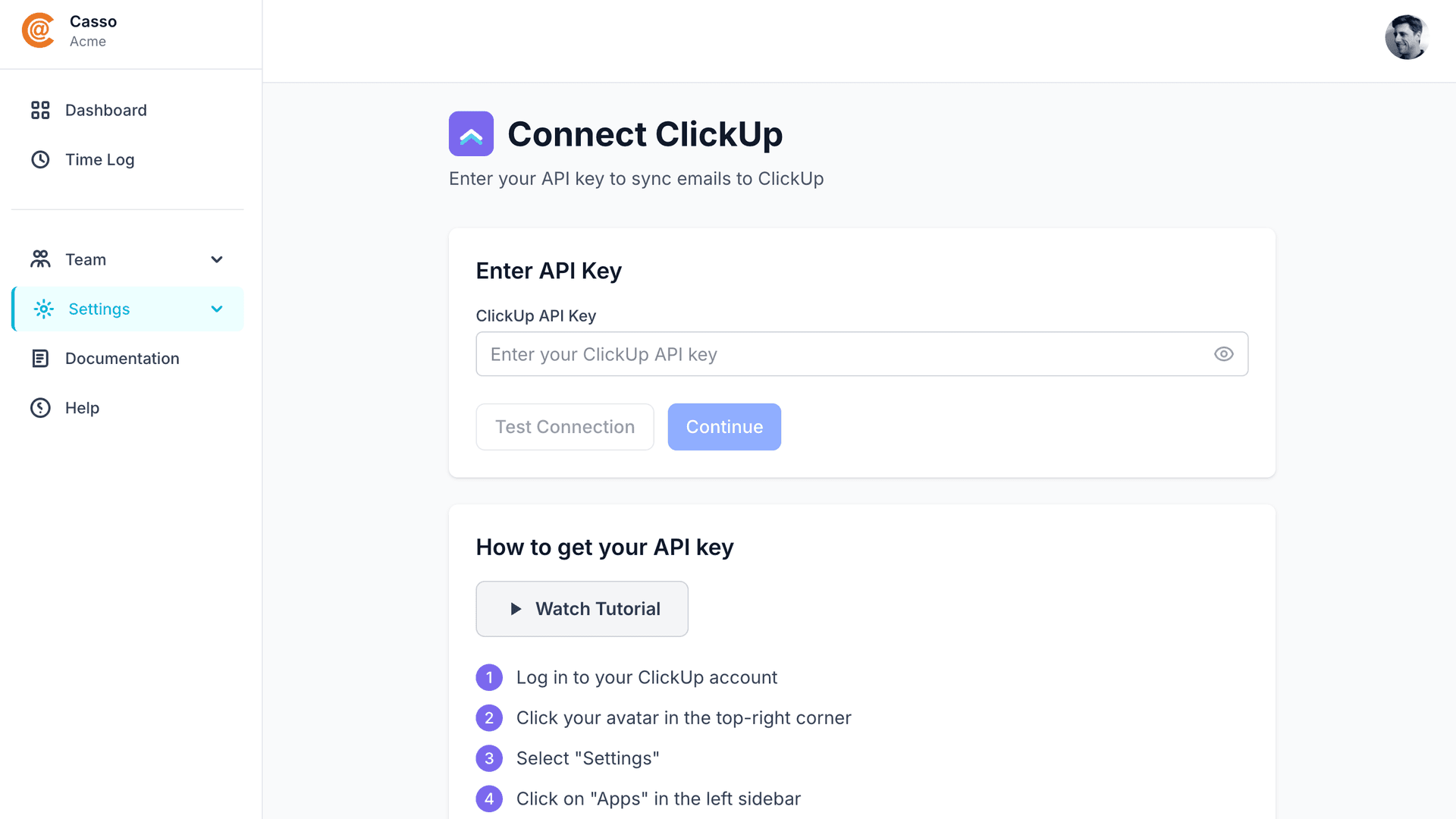
Step 2: Casso needs your ClickUp API key to create tasks. Click "Watch Tutorial" or follow these steps:
Step 3: In ClickUp, click your avatar in the top-right corner and select "Settings."
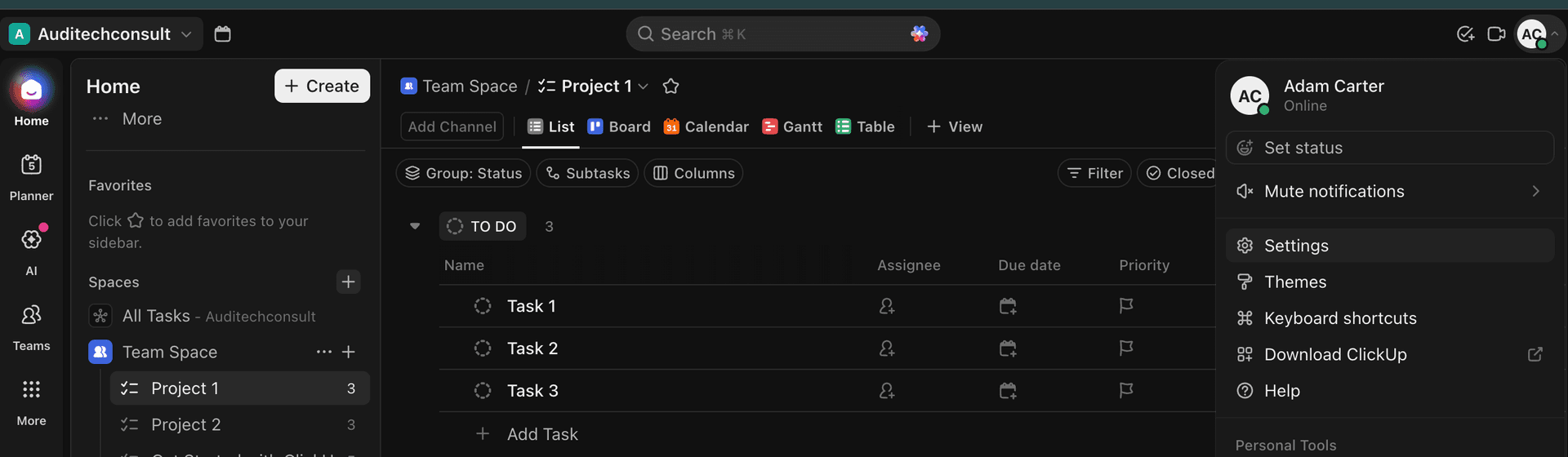
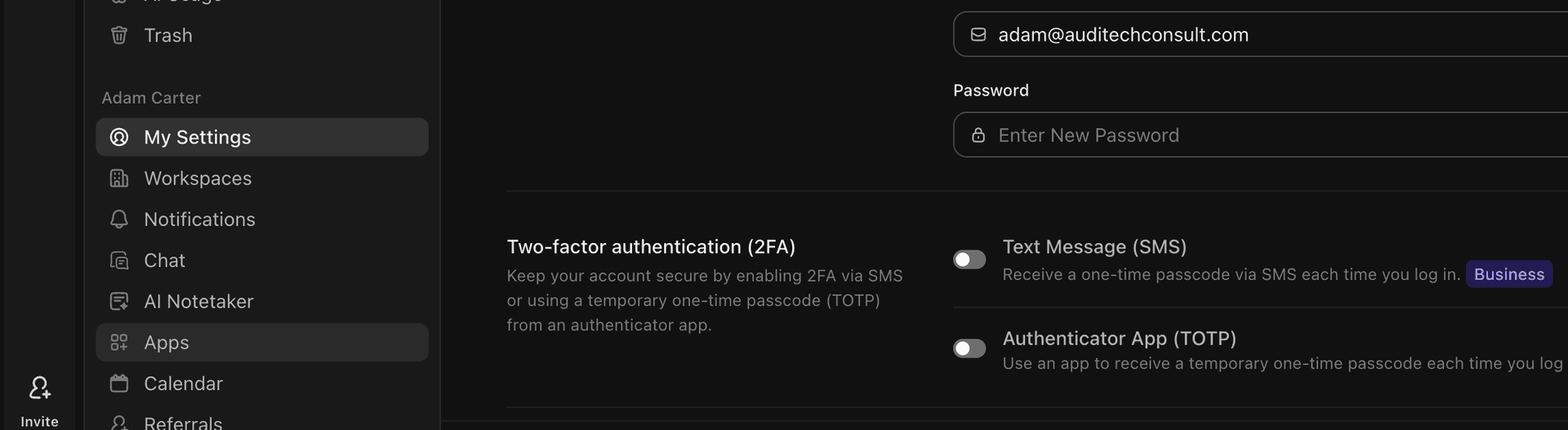
Step 4: In the left sidebar, click "Apps" under your personal settings.
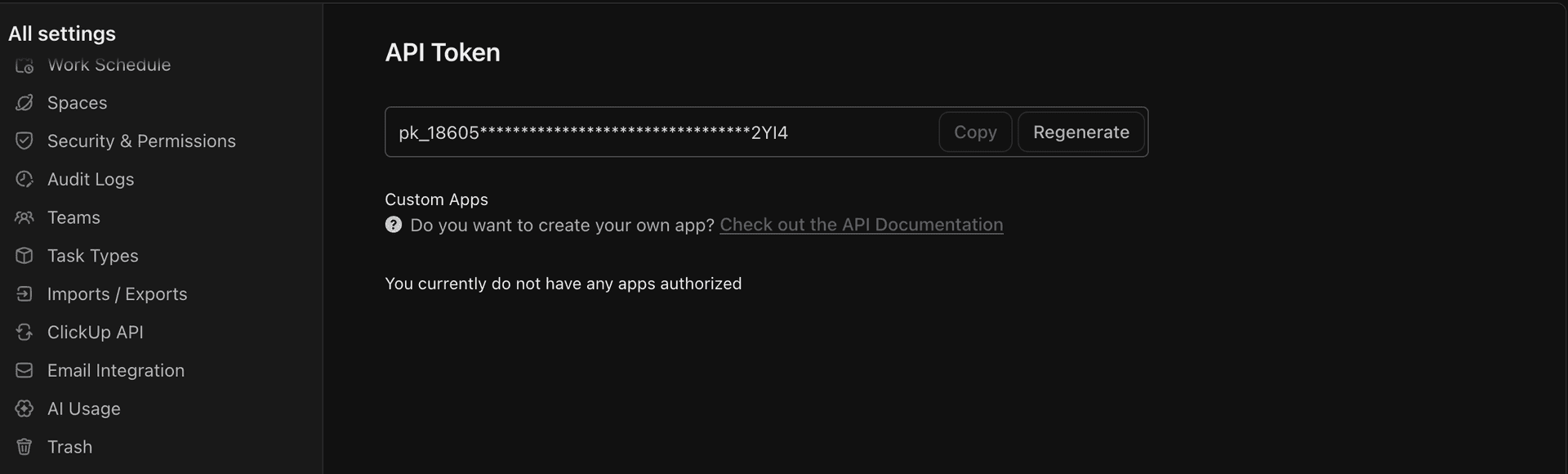
Step 5: Copy your API Token.
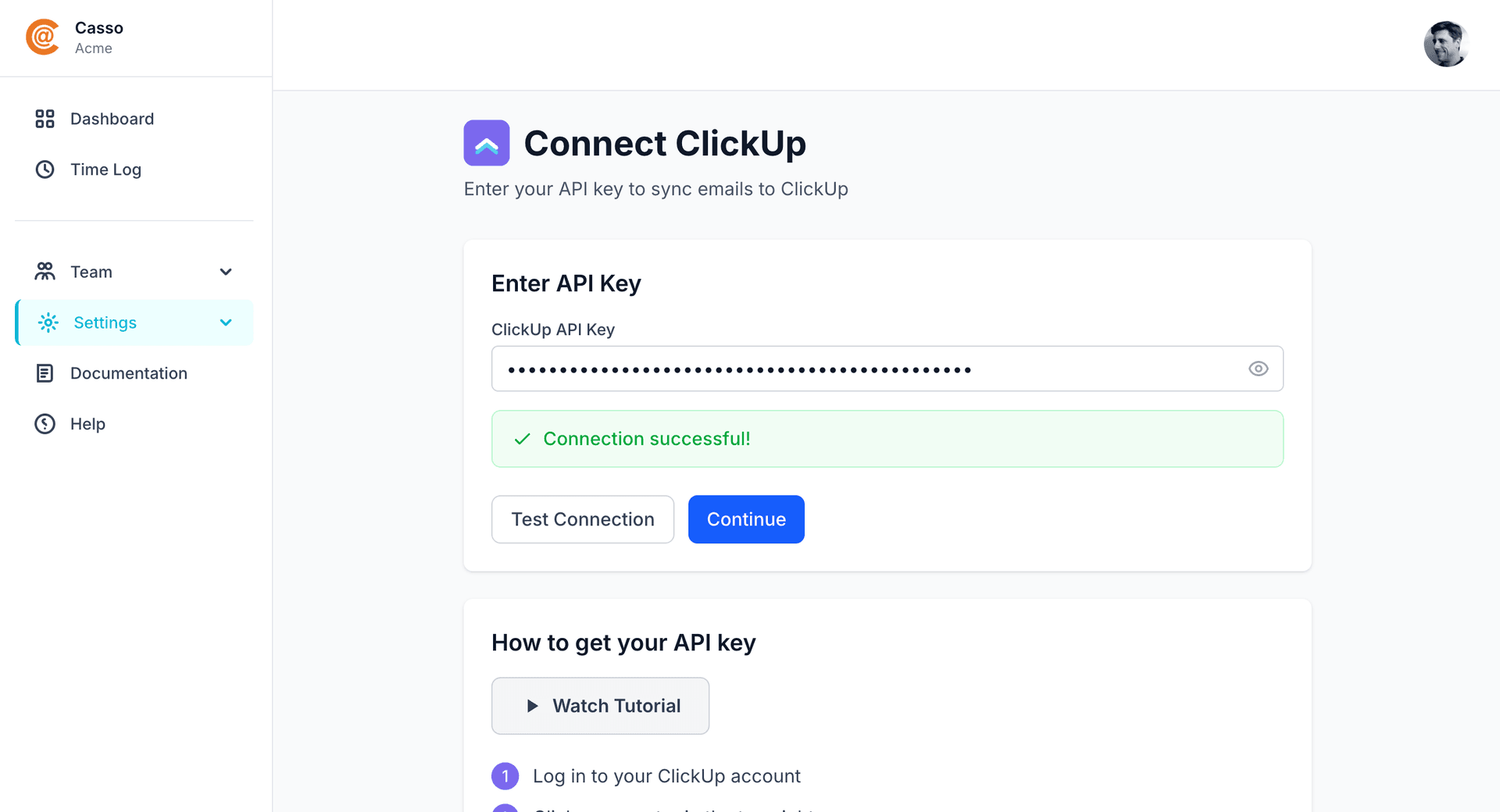
Step 6: Paste your API key into Casso and click "Test Connection." You'll see "Connection successful!"
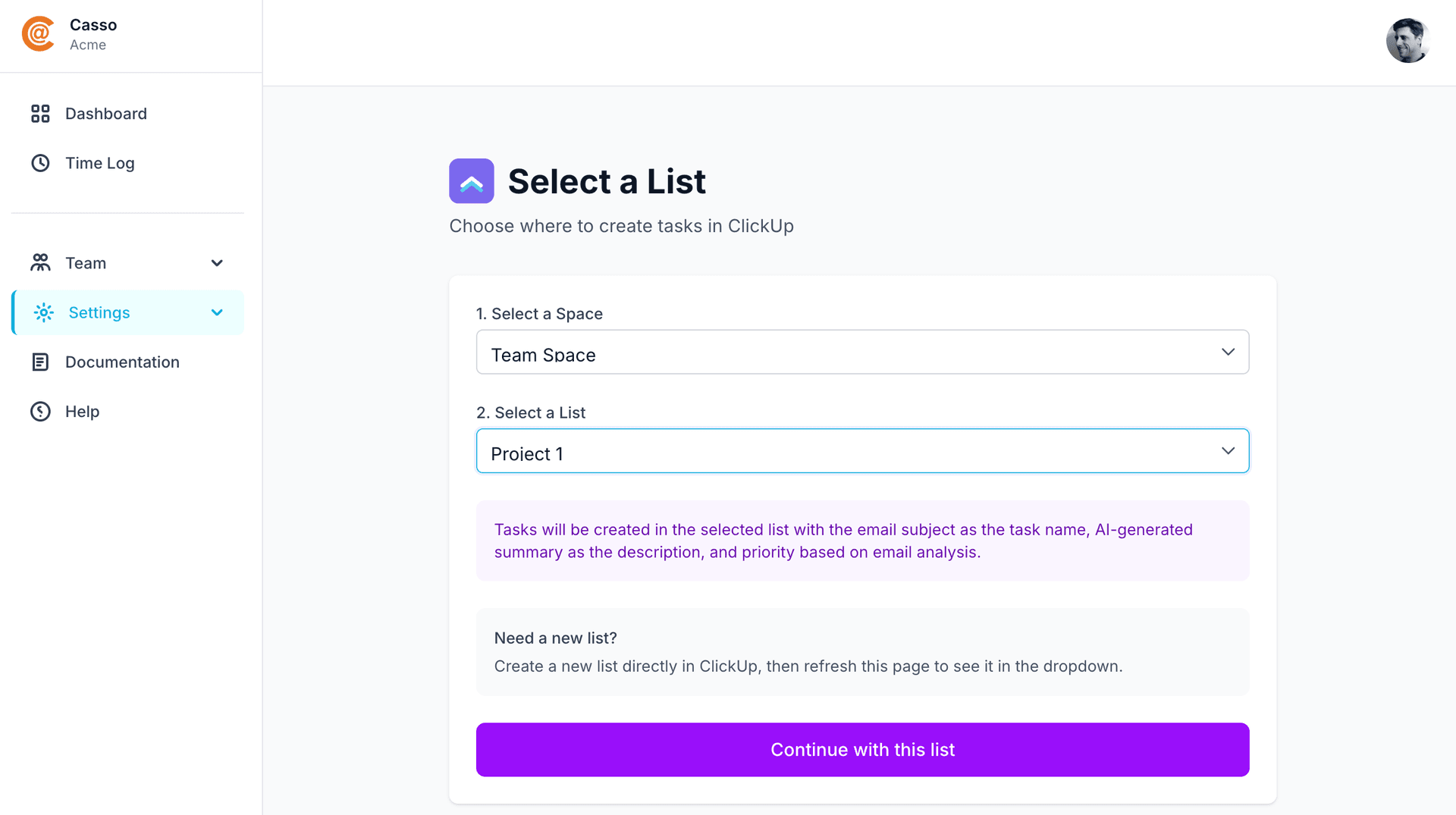
Step 7: Select which Space and List should receive your email tasks.
Step 8: Done. Your dashboard shows your unique forwarding email address. Forward any email to this address and it becomes a task in ClickUp.
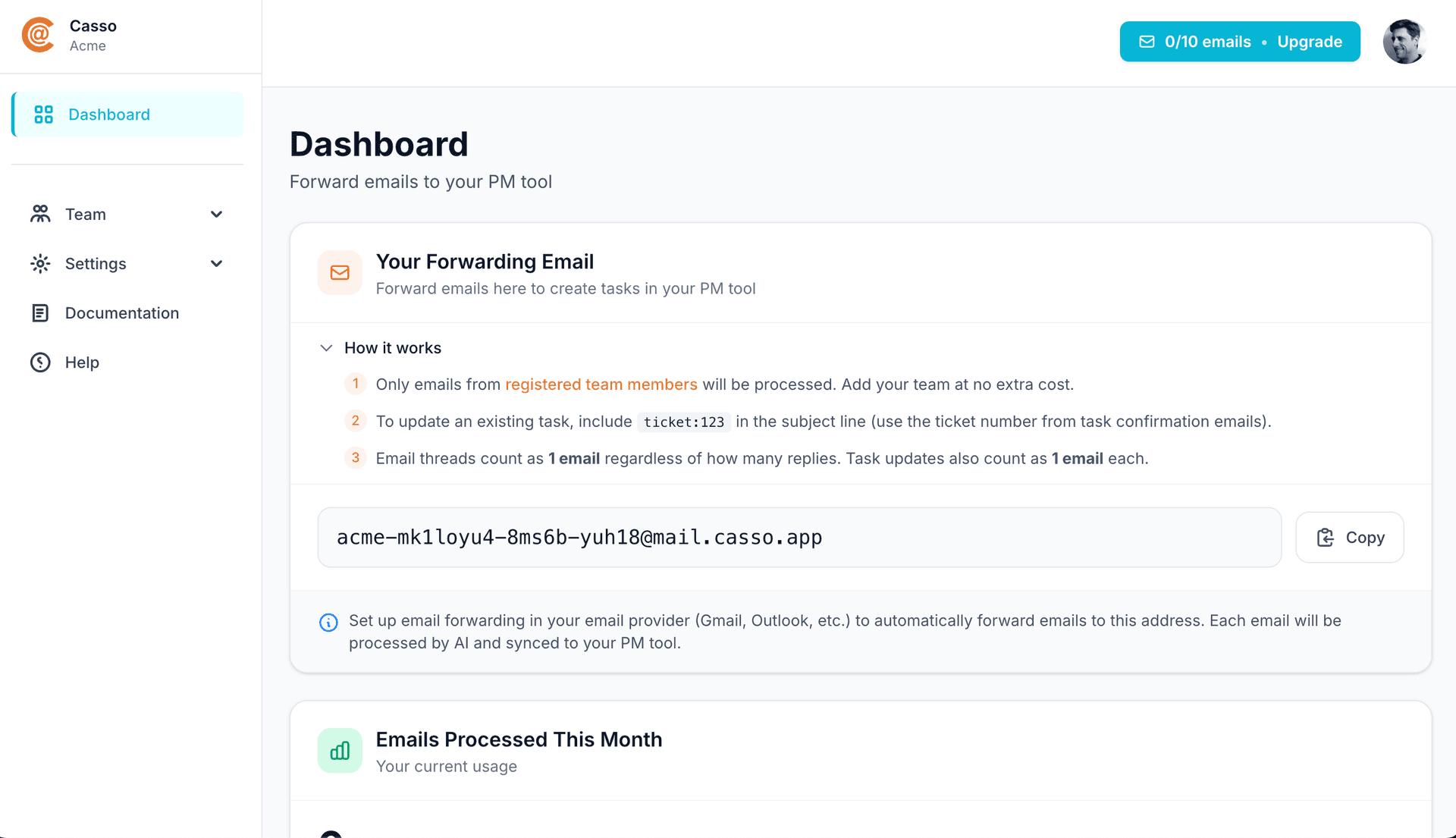
That's it. No extension to install, no permissions to manage, no parsing failures. Forward an email with attachments and watch everything arrive intact.
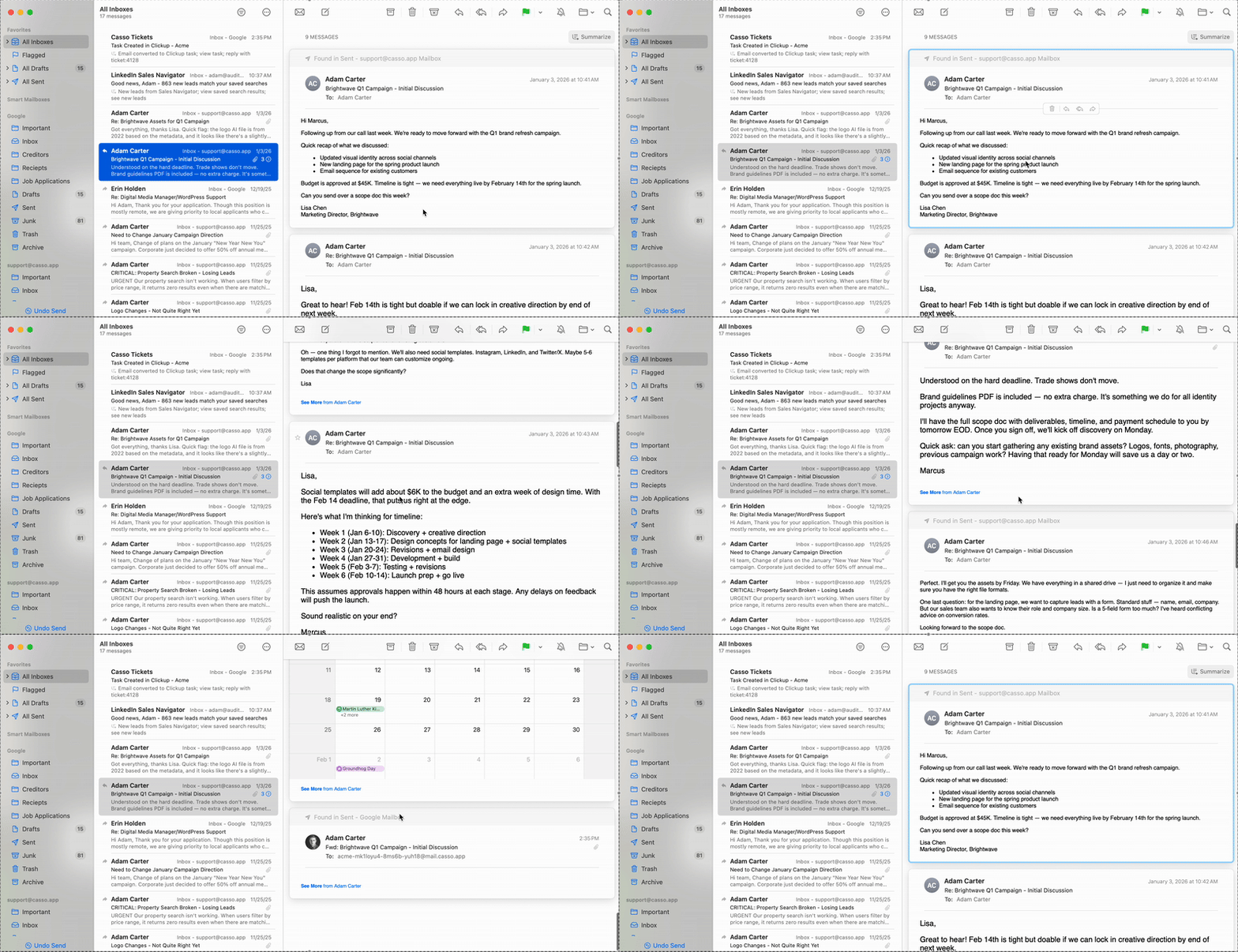
Here's a real email thread — client discussion about a Q1 campaign, 9 messages deep:
And here's what the task looks like in ClickUp — full email content, sender info, date extracted, due date set automatically:
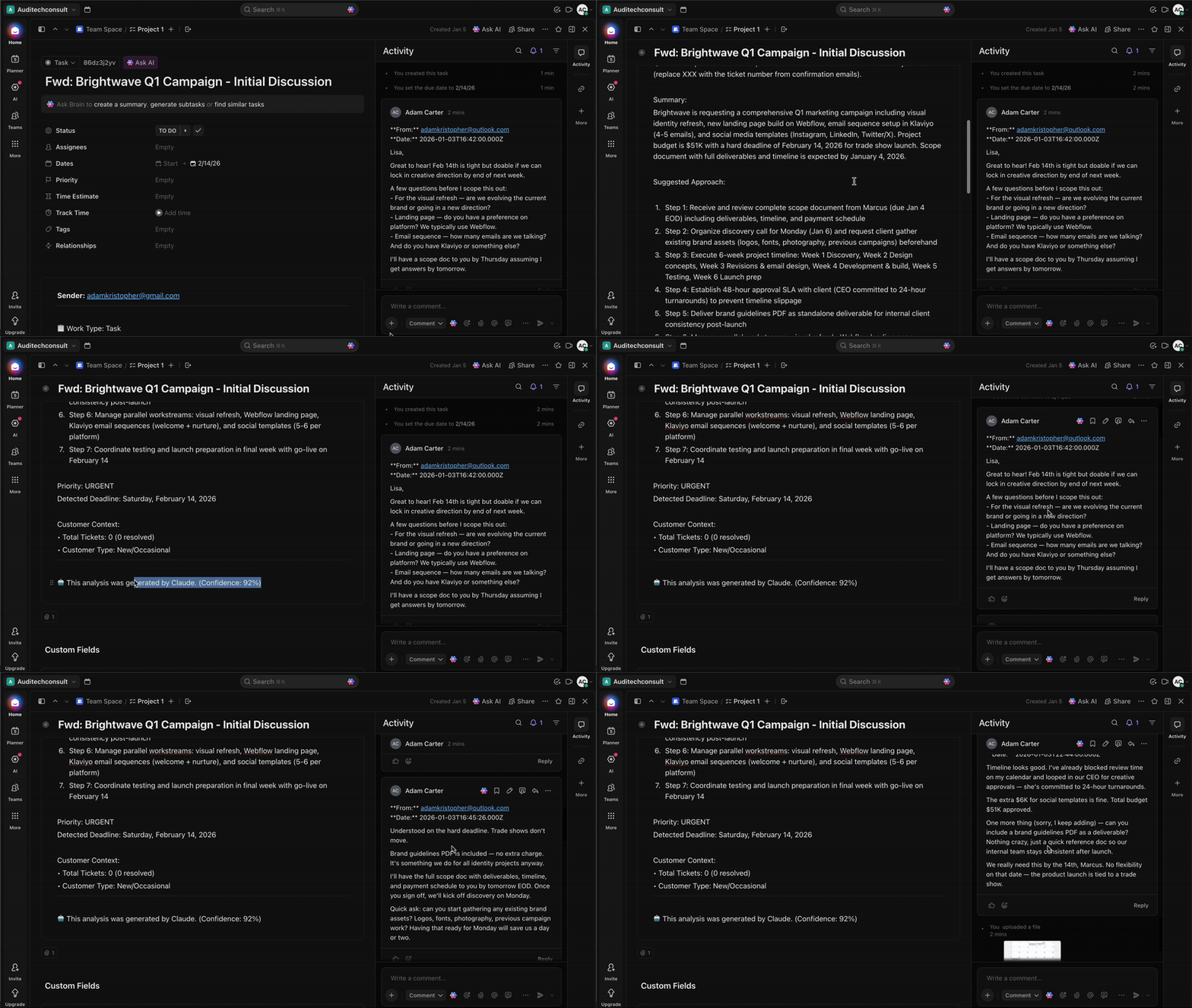
Notice what made it through: the sender's email, the original date/time, the full message body, and the due date pulled from the email content ("by Thursday"). That's the data ClickUp's extension loses.
Free forever: 10 email threads per month, no credit card required. Threads count as 1 email regardless of how many replies — so a 15-email back-and-forth with a client is still just 1 toward your limit.
Updating Tasks Without Creating Duplicates
When Casso creates a task, you get a confirmation email with a ticket reference number:
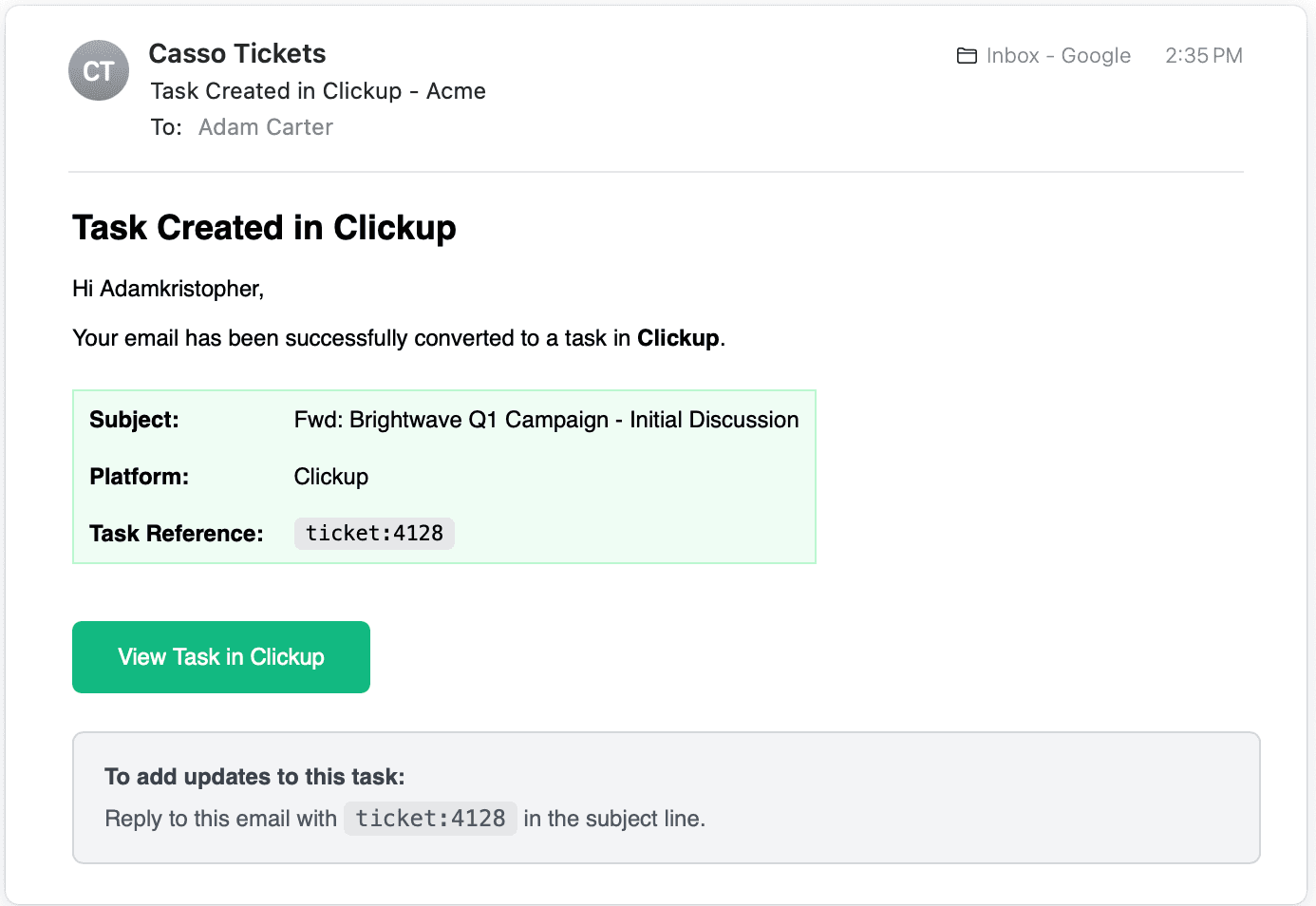
To update that task later, add ticket:xxxx to the subject line of any email. You can:
- Reply to the same thread — add ticket:4125 to the subject, reply gets added as a comment
- Forward a new email — add ticket:4125 to the subject, new info goes to existing task
- Forward attachments later — same thing, attachments get added to the task
Here's what that looks like — forwarding a client email to an existing task:
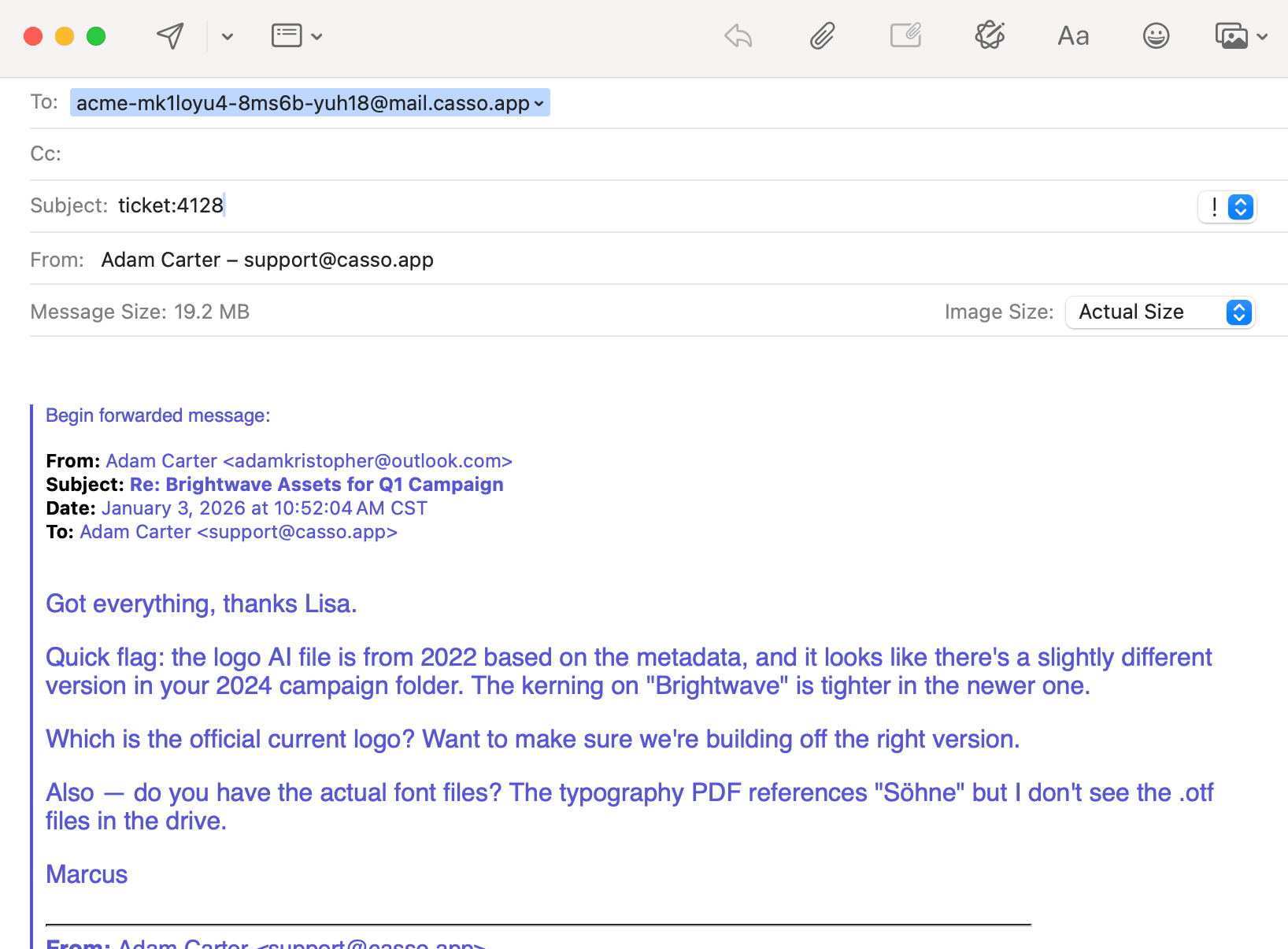
Every update becomes a comment on the task. Attachments get added. The AI summary stays untouched — your original task description doesn't get overwritten.
This solves the ClickUp problem where every forwarded email creates a new task. With Casso, one client conversation = one task, no matter how many emails are in the thread.
When to Use What
| Situation | Best Option |
|---|---|
| Quick task from webpage | ClickUp Chrome extension (screenshots, bookmarks work fine) |
| Time tracking | ClickUp Chrome extension |
| Email to task with attachments | Casso |
| Client emails you need to track | Casso |
| Email threads that need context | Casso |
| High-volume email processing | Casso |
The Chrome extension isn't useless — it's great for screenshots, time tracking, and quick task creation from webpages. Just don't rely on it for email.
Summary
ClickUp's Chrome extension has email problems that date back to 2020 and aren't getting fixed. The new AI-focused rebuild made things worse, not better.
If the extension isn't working:
- Clear cache and reinstall (fixes crashes)
- Reset Gmail permissions (fixes connection issues)
- Use plain text emails (reduces parsing errors)
- Upload attachments manually (tedious but reliable)
- Use Email to List instead (same problems, different pipe)
If you need email-to-task that actually works:
Forward emails to Casso. Attachments, headers, dates, and thread context all preserved. Task created in ClickUp automatically.